
How Segue works
Unit 0 · Orientation. Read this first. It tells you how to move through Segue, what the guarantees are, and what you'll need on hand.
Segue teaches modern Swift — Swift 6 strict concurrency, SwiftUI, @Observable, SwiftData,
Swift Testing — by having you build real apps. The web is where you learn and get graded; the
native app you'll build on a Mac is where the skill actually lands. This lesson is the map.
@Observable, and SwiftData. It mirrors this curriculum and is built with the exact patterns you'll learn, so the platform is its own worked example.Pick your path
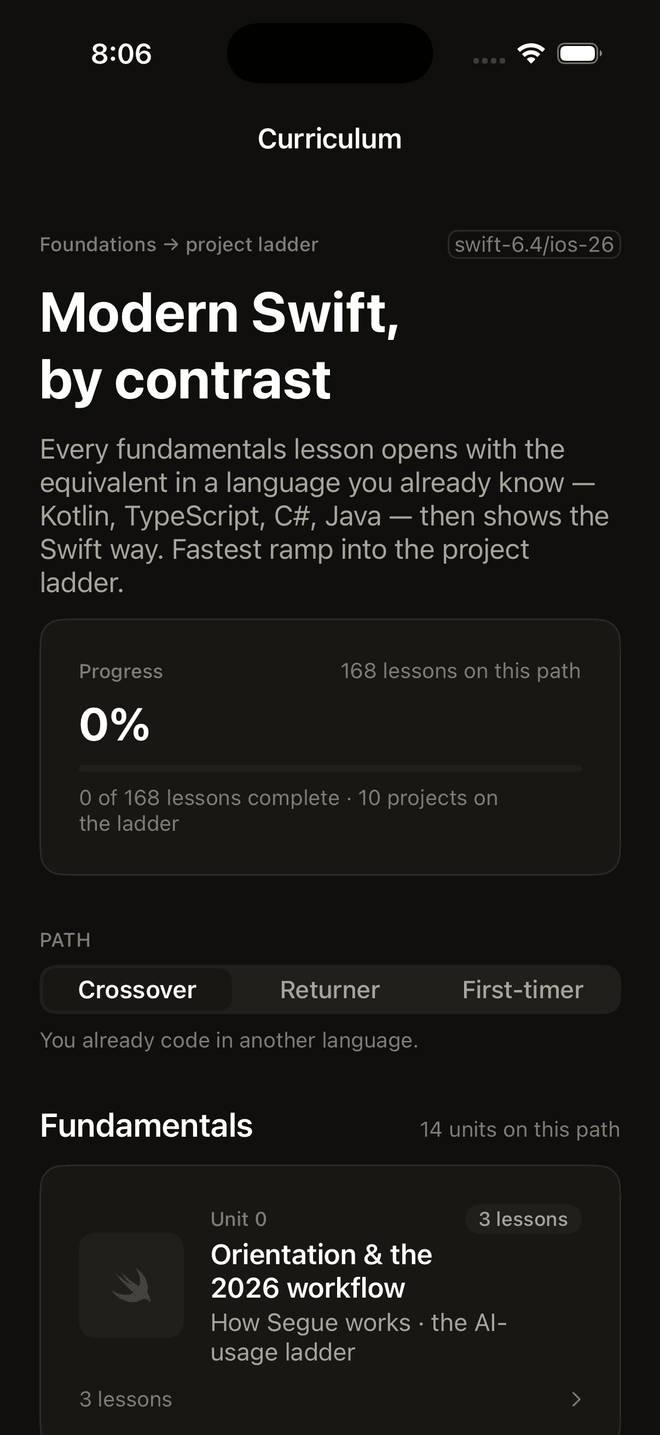
Everyone learns the same modern Swift, but not everyone arrives from the same place. Segue tags lessons with a path so you see the framing that fits you and skip the framing that doesn't:
- Path A · Crossover — you're a working developer coming from another language (Kotlin, TypeScript, C#, Java, Dart). You get side-by-side contrast panels that translate what you already know into Swift, so you're mapping rather than starting over.
- Path B · Returner — you knew Swift or UIKit once, but it was the era of
DispatchQueue, delegates, andObservableObject. You get "what replaced what" migration lessons that retire the stale habits explicitly. - Path C · First-timer — this is your first serious language. You get the full build with no assumed background; the crossover and migration asides are simply skipped.
You don't lock a path in. Most lessons are marked [A, B, C] and everyone reads them; the
path-specific ones (a Crossover contrast lesson, a Returner migration lesson) surface for the
people they're written for. If a panel names a language or a framework you don't know, skip
it — it isn't load-bearing for the others.
The shape of the curriculum
Segue is two halves that feed each other:
- Fundamentals (Units 1–13). The language and the frameworks, one concept at a time: the value model, strict concurrency, optionals, protocols, error handling, SwiftUI, observation, navigation, networking, SwiftData, testing, and architecture. Concurrency is Unit 2 on purpose — Segue treats data-race safety as a first-class subject, not an appendix you bolt on later.
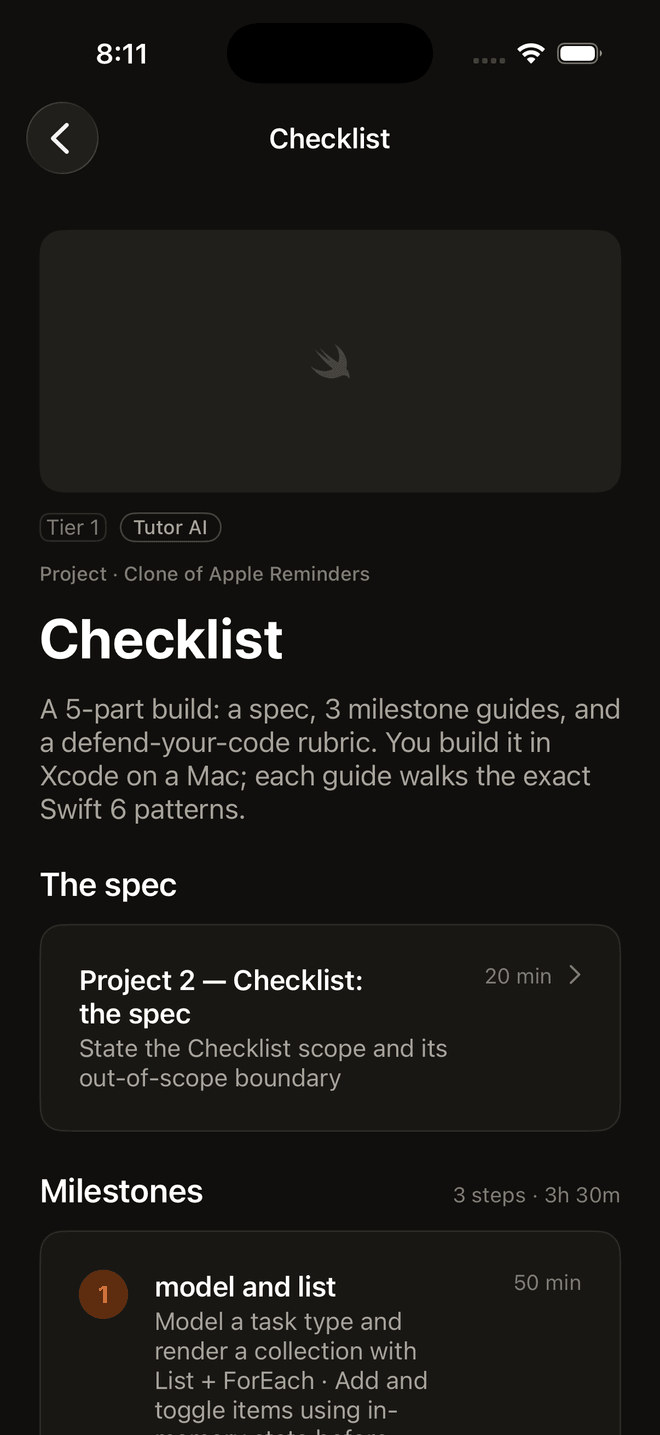
- The project ladder (Units 21–31). Ten build-a-real-app projects of rising ambition — a tip splitter, a checklist, a weather client, a Letterboxd clone, an Instagram clone, all the way to a capstone of your choosing. Each project locks in the fundamentals it depends on by making you use them under realistic pressure.
The two halves interleave. You don't finish all thirteen fundamentals units before touching a project; you learn a cluster of concepts and immediately spend them building something. Interleaving is deliberate — retrieval under slightly different conditions is what moves a concept from "I read it" to "I can reach for it." Reading about actors is not the same as debugging your own actor at 11pm; the ladder makes sure you do the second kind.
Graded exercises and the runner
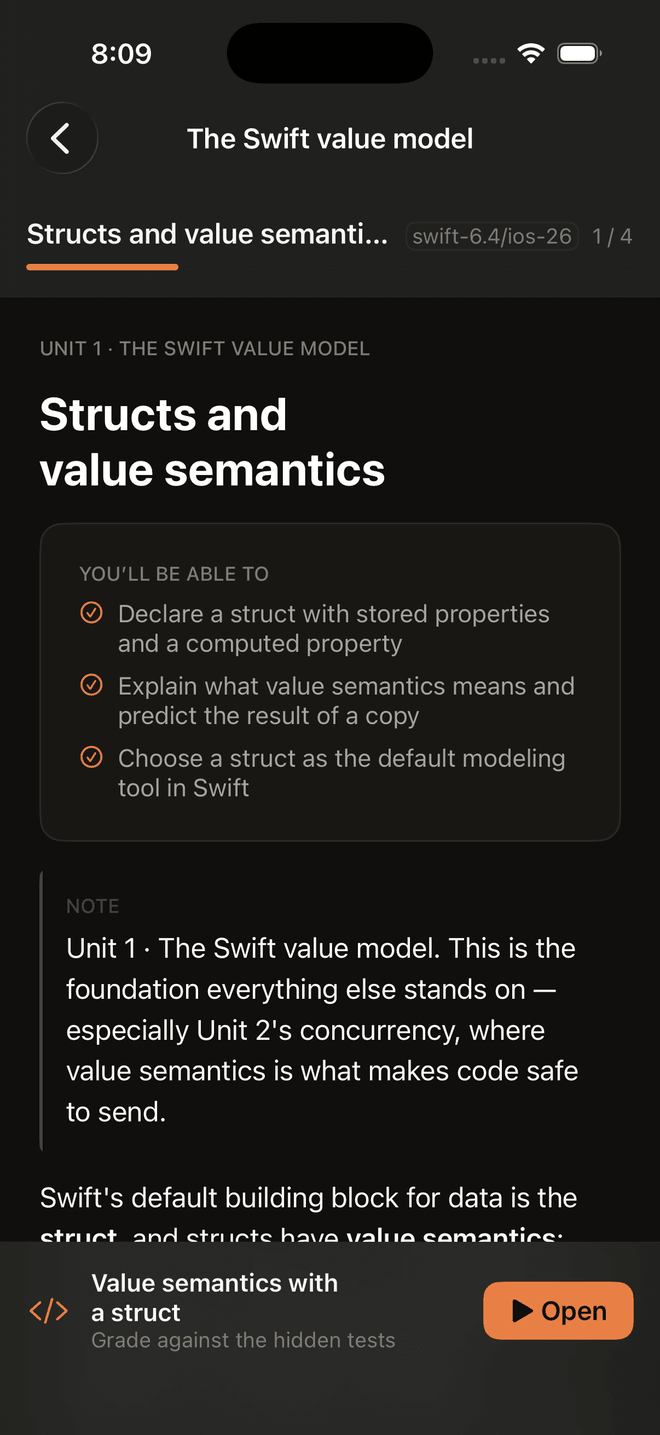
Fundamentals lessons embed short, self-contained coding exercises. You write Swift in the
browser and press Run; a sandboxed server — the runner — compiles your submission and
executes a hidden Swift Testing suite against it. Green means every hidden @Test passed.
The mechanics matter, because you'll see them referenced throughout Unit 12: your code is
compiled as a library module named Solution, and the hidden tests do @testable import Solution and call your functions. That's why an exercise asks you to write declarations —
types and functions — rather than a script. Every submission runs with the network disabled
and tight resource limits; the grader trusts nothing.
Exercises are small and pure by design — logic in, result out — so a failure points at your
reasoning, not at plumbing. Read the failure: Swift Testing reports the actual values on each
side of a comparison, so fizzbuzz(15) → "Fizz", expected "FizzBuzz" tells you which branch
is wrong, not merely that something is wrong.
Where the projects happen
The exercises run in the browser, but the projects are built in Xcode on a Mac. There is no way around this for real iOS work: the simulator, the SwiftUI previews, Instruments, and the device deployment pipeline are all Apple-platform tools. The project units give you spec lessons, step-by-step milestone guides, and a rubric to defend your own code against — but the building happens in your own Xcode project, on your own machine. If you don't have a Mac yet, you can complete every fundamentals unit and its graded exercises first; the ladder is where a Mac becomes necessary.
The kept-current guarantee
Every lesson and exercise is stamped with a stack_version — right now
swift-6.4/ios-26. That stamp is checked in CI, and it's a promise: you will never learn
stale Swift here. No content ships teaching ObservableObject, DispatchQueue for new
code, XCTest, or completion-handler APIs as the way to do things — those appear only in
Returner migration lessons, clearly labeled as the old world. Each year after WWDC the stack
is re-verified and re-stamped; anything that falls behind fails the build until it's brought
current. When you finish Segue, what you know is what a team ships today.
Knowledge check
Q: Do you have to finish all of Units 1–13 before starting a project? No. Fundamentals and the project ladder interleave on purpose — you learn a cluster of concepts and immediately apply it in a build. Spacing and applying the material is what makes it stick.
Q: An exercise grades green in the browser. What actually happened, and where do the real
apps get built?
The runner compiled your code as a module named Solution and ran a hidden Swift Testing
suite against it (network off, sandboxed); green means every @Test passed. The projects,
though, are built in Xcode on a Mac — the simulator, previews, and device tooling are
Apple-platform only.